







Get Started with SRExpert
Connect your first cluster in 5 minutes — one platform, every workflow.
Getting started
Installation via Helm Chart
Fetch the latest SRExpert charts from our repository:
helm repo add srexpert-helm https://nexus.srexpert.io/repository/srexpert-helm/
helm repo update
Install SRExpert in a dedicated namespace:
kubectl create ns srexpert
After adding the repository and creating the namespace, you can start with the backend installations first:
helm upgrade --install srexpert-backend srexpert-helm/srexpert-backend --namespace srexpert -f values-backend.yaml
And now for the frontend:
helm upgrade --install srexpert-frontend srexpert-helm/srexpert-frontend --namespace srexpert -f values-frontend.yaml
Customize your installation
You can customize your installation by editing the values files for each component.
Backend Customization
Critical Configuration: frontendUrl
The frontendUrl field in values-backend.yaml must match the exact domain where your SRExpert frontend is accessible.
frontendUrl: https://srexpert.yourdomain.com
This URL is used by the backend to generate links in emails (password recovery, invitations, notifications) and in the payment flow (Stripe redirect URLs). If misconfigured:
- Password recovery emails will contain broken links
- Payment checkout will fail to redirect back to your application
- Team invitation links will not work
Make sure it uses https:// and does not include a trailing slash.
Frontend Customization
Ingress:
hosts:
  - host: srexpert.yourdomain.com
    paths:
      - path: /api/v1/
        pathType: Prefix
        backend: srexpert-backend
        backendPort: 8000
      - path: /
        pathType: Prefix
tls:
  - secretName: srexpert-tls
    hosts:
      - srexpert.yourdomain.com
This section configures the ingress for accessing your SRExpert installation with TLS.
Autoscaling:
autoscaling:
  enabled: true
  minReplicas: 1
  maxReplicas: 3
  targetCPUUtilizationPercentage: 80
For full configuration options and complete YAML examples, click here to view the full installation guide.
System Whitelist
To use SRExpert, you need to allow the following URLs:
https://backoffice-api.srexpert.io
https://registry.srexpert.io
https://github.com
https://artifacthub.io
Checkout Process
How to register and make a purchase
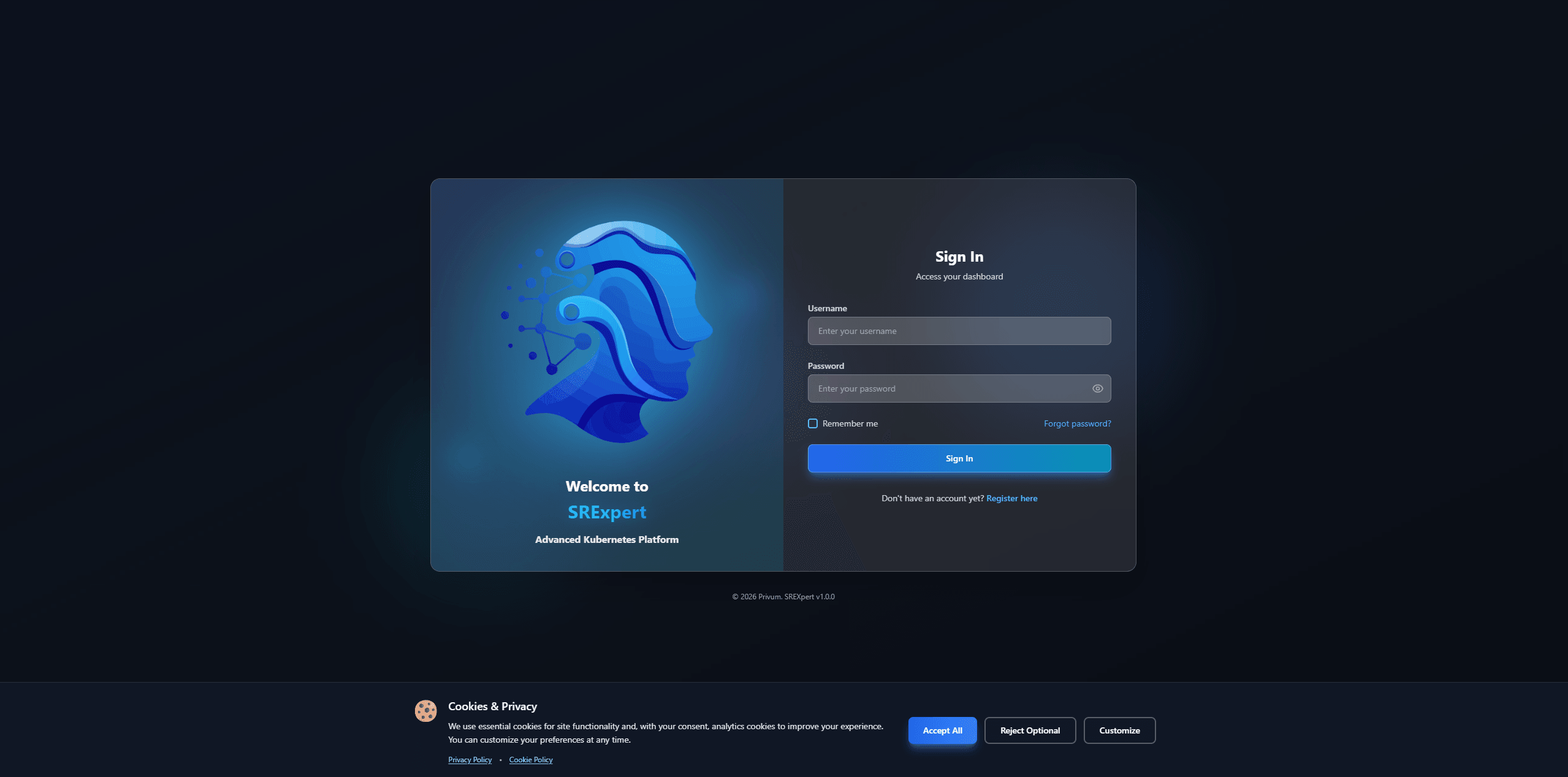
Checkout is enabled only after SRExpert is deployed to your management cluster. This ensures your workspace is securely linked before activating a paid plan.
Registration Steps
- Step 1: Deploy SRExpert to your cluster using our Helm charts
- Step 2: Access the SRExpert dashboard and click Sign Up
- Step 3: Enter your email and create a password (or use SSO)
- Step 4: Verify your email address
- Step 5: Complete your workspace profile
Making a Purchase
- Step 1: Go to Settings → Billing → Upgrade Plan
- Step 2: Select your desired plan (Professional, Business, or Enterprise)
- Step 3: Choose billing cycle: Monthly or Annual (save 20%)
- Step 4: Enter payment details via Stripe secure checkout
- Step 5: Your plan activates immediately after payment
Accepted Payment Methods: Visa, Mastercard, American Express, and SEPA Direct Debit (EU).
Note: Enterprise plans require contacting our sales team for custom pricing.
Upgrade and Downgrade Plans
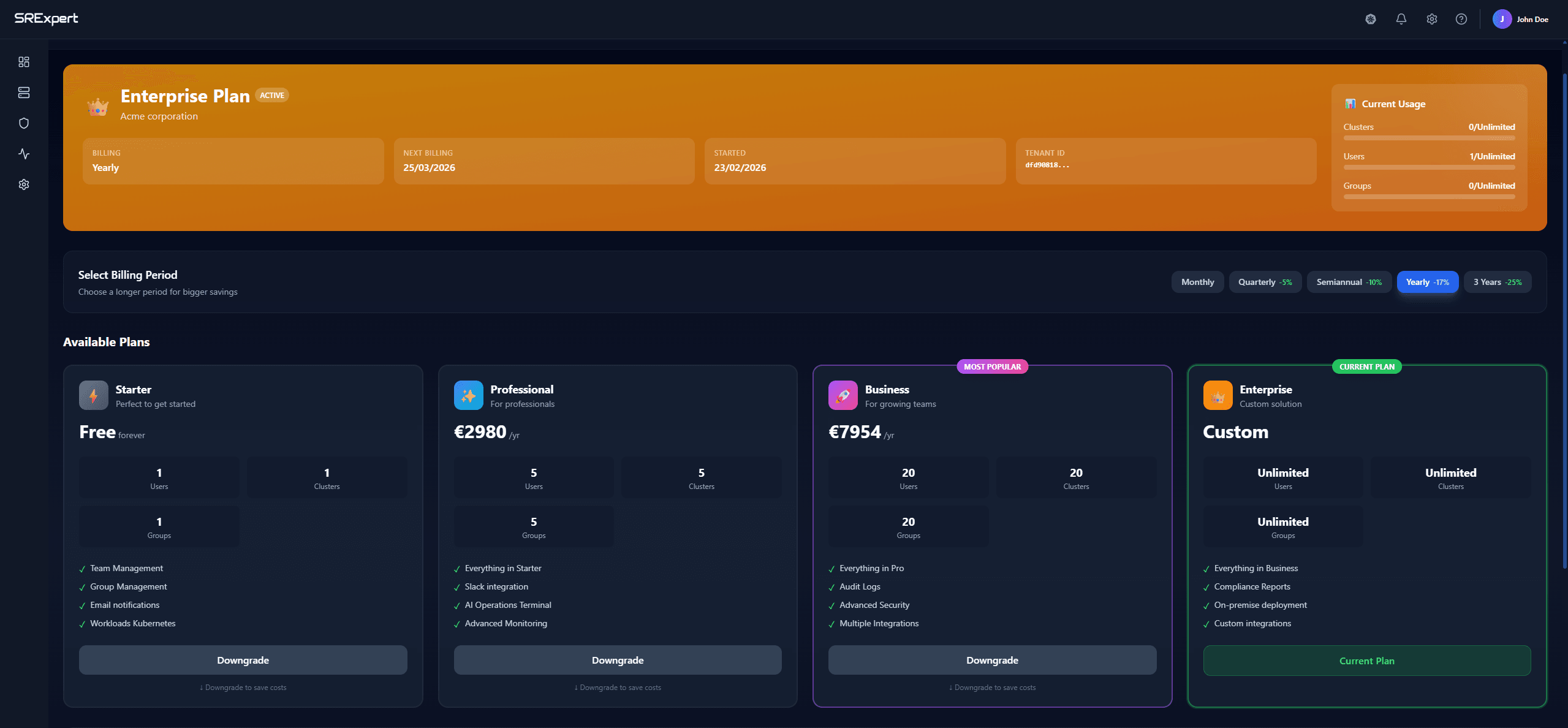
Switch plans anytime with full flexibility. Your subscription updates instantly with prorated billing handled automatically.
How to Upgrade
- Step 1: Go to Settings → Billing
- Step 2: Click Change Plan
- Step 3: Select a higher tier plan
- Step 4: Confirm the upgrade
- Step 5: New features are available immediately
Billing: You'll be charged the prorated difference for the remaining billing period.
How to Downgrade
- Step 1: Go to Settings → Billing
- Step 2: Click Change Plan
- Step 3: Select a lower tier plan
- Step 4: Review what features you'll lose
- Step 5: Confirm the downgrade
Billing: Credit is applied to your next invoice. Downgrade takes effect at the end of your current billing cycle.
Plan Limits
When downgrading, ensure your usage fits the new plan limits:
30 Days Trial: 1 user, 1 group, 1 cluster (after trial)
Professional: 5 users, 5 groups, 5 clusters
Business: 20 users, 20 groups, 20 clusters
Enterprise: Unlimited resources
Warning: If you exceed limits after downgrade, you'll need to remove resources or upgrade again.
Reimbursement Policy
We offer a 14-day money-back guarantee on all paid plans. If you're not satisfied with SRExpert, you can request a full refund within 14 days of your initial purchase.
How to Request a Refund
- Step 1: Go to Settings → Billing
- Step 2: Click Request Refund or contact us at [email protected]
- Step 3: Provide your reason for the refund (optional but appreciated)
- Step 4: We'll process your request within 3-5 business days
Refund Conditions
- Eligible: First-time purchases within 14 days
- Eligible: Annual plan cancellations (prorated refund)
- Not eligible: Renewals after the first billing cycle
- Not eligible: Accounts terminated for Terms of Service violations
What Happens After Refund
- Your subscription is immediately canceled
- Access continues until the end of current billing period
- Your data is retained for 30 days (can be deleted upon request)
- You can resubscribe anytime on any plan
Payment Processing: All refunds are processed through Stripe and will appear on your original payment method within 5-10 business days depending on your bank.
First Operations
Add your first Cluster
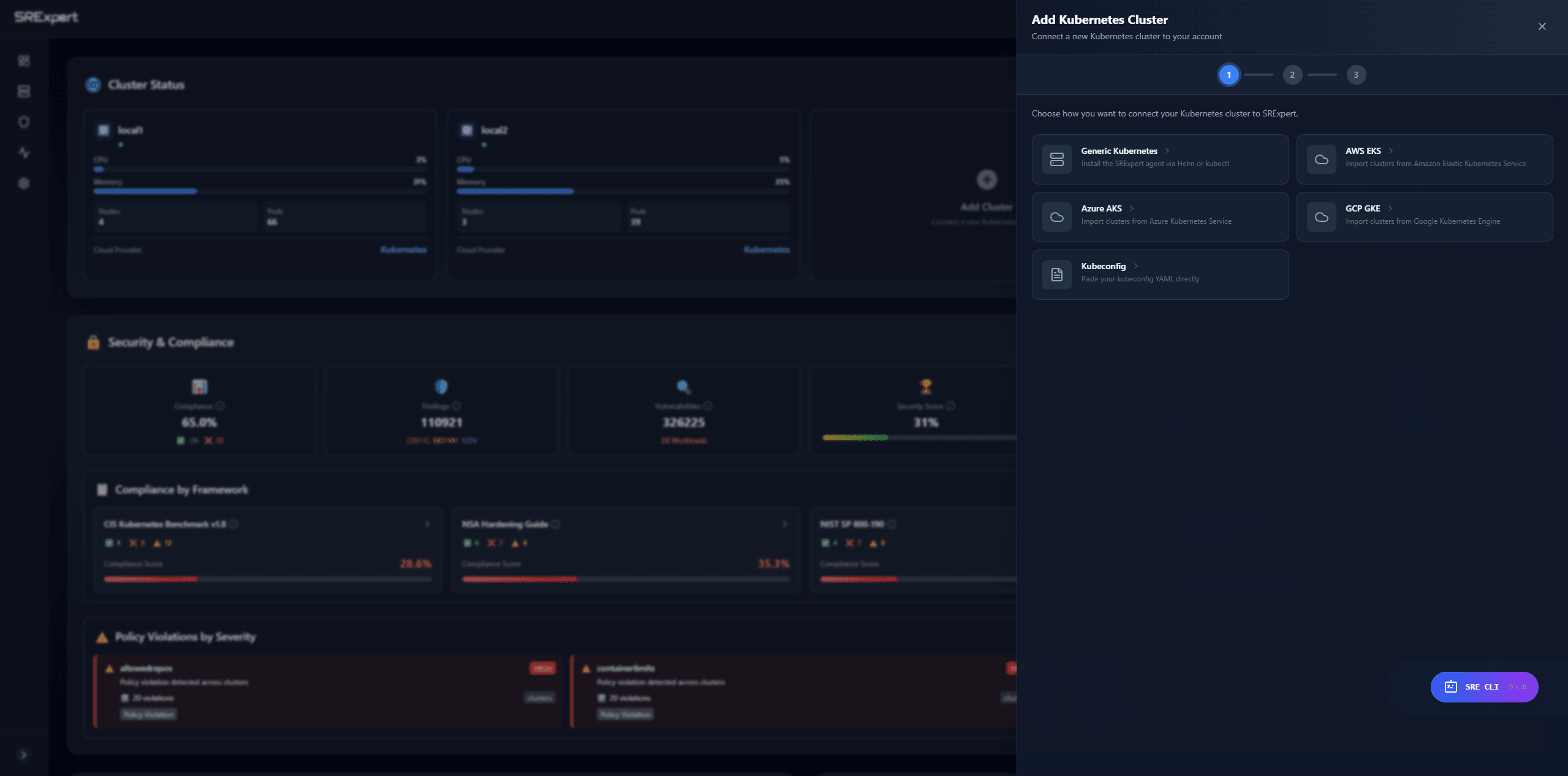
After logging into SRExpert, navigate to Clusters in the sidebar menu.
Steps to Add a Cluster
- Step 1: Click the Add Cluster button
- Step 2: Enter a Cluster Name (no spaces allowed, use hyphens instead)
- Step 3: Enter the Region (optional, e.g., us-east-1)
- Step 4: Select the Cloud Provider from the dropdown
- Step 5: Paste your Kubeconfig YAML content
- Step 6: Click Save to register the cluster
Your cluster will appear in the dashboard once connected.
Supported Kubernetes versions: 1.24+
Tip: You can get your kubeconfig by running kubectl config view --raw on your cluster.
Creating Users and Groups
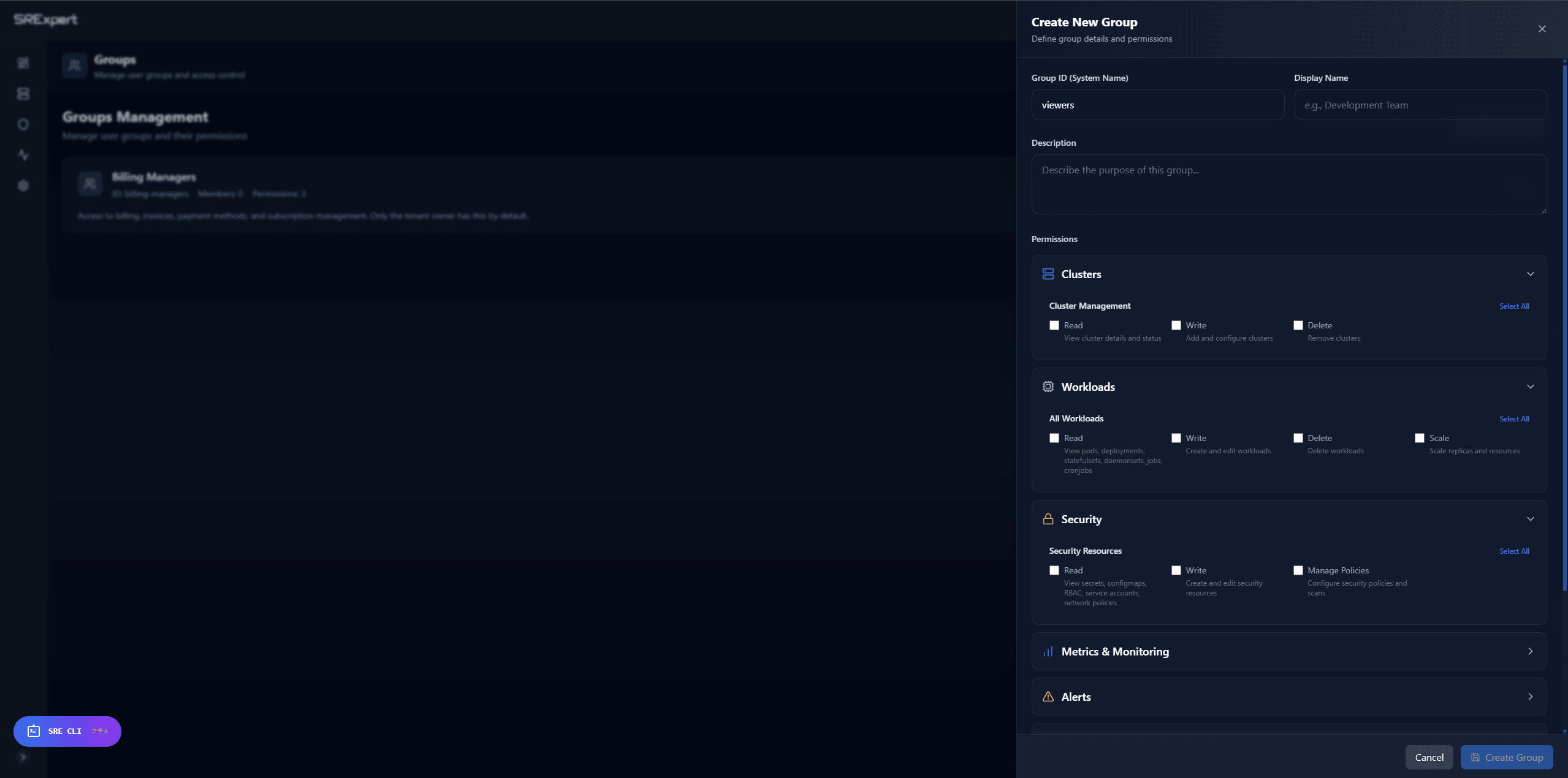
Manage team access through the Users & Groups section in Settings.
Creating Users
- Step 1: Go to Settings → Users
- Step 2: Click Invite User
- Step 3: Enter the user's email address
- Step 4: Select a role: Admin, Editor, or Viewer
- Step 5: Click Send Invitation
The user will receive an email to complete registration.
Creating Groups
- Step 1: Go to Settings → Groups
- Step 2: Click Create Group
- Step 3: Enter the group name and description
- Step 4: Add users to the group
- Step 5: Assign cluster permissions to the group
Tip: Use groups to manage permissions at scale. Assign clusters to groups instead of individual users for easier maintenance.
SSO Setup
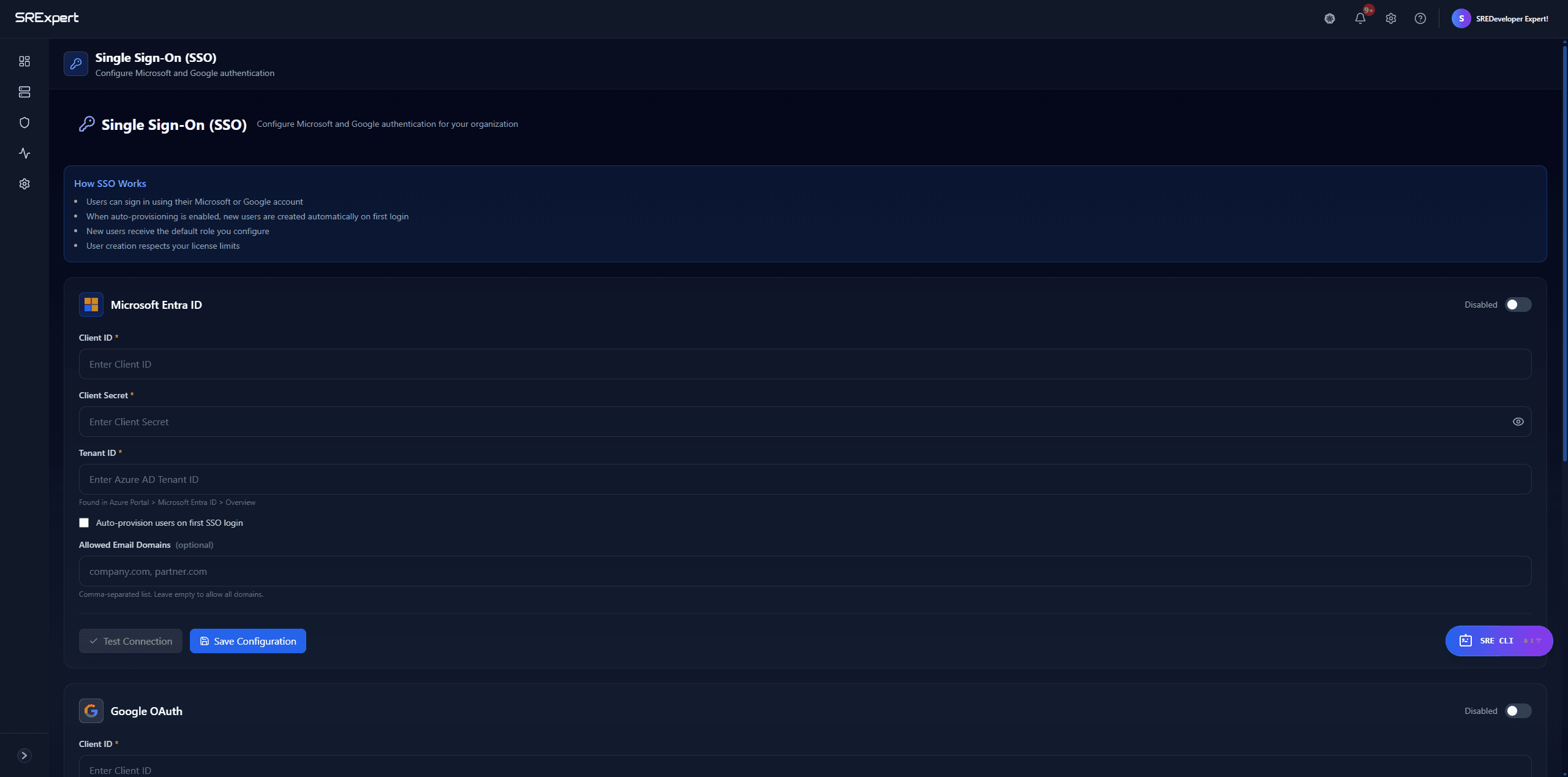
SRExpert supports Single Sign-On via Azure AD, Okta, and Google Workspace.
Azure AD Configuration
- Step 1: Go to Settings → Authentication → SSO
- Step 2: Select Azure AD as the provider
- Step 3: In Azure Portal, register a new application with Redirect URI and grant User.Read permission
- Step 4: Copy the Client ID and Client Secret to SRExpert
- Step 5: Enter your Tenant ID
- Step 6: Click Save & Test
Okta Configuration
- Step 1: Create a new OIDC application in Okta
- Step 2: Set the redirect URI
- Step 3: Copy the credentials to SRExpert SSO settings
Note: SSO is available on Professional plan and above.